
Setup
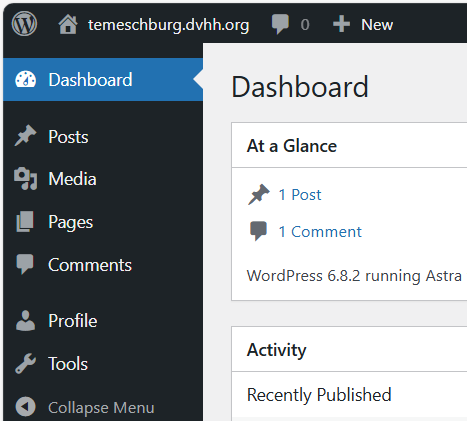
Village sites are full-fledged WordPress websites. As such anybody working on the site need to be set up as a “User”. Upon requesting a village site to work on you will receive an email to set your password. Click on the rather lengthy link provided in the email.
Use your WordPress password on the password setup page. You will next see a login link. Click that link and log in with your WordPress username and your WordPress password. You will see the dashboard on the new village site. You will be a user at the Editor level.
On the dashboard you can access Media and Pages. The other items, Posts, Comments, and Tools you will not be using. Profile allows you to see your user identification and to make changes, like resetting your password.
The site outline will have been set up by an Administrator. There will be an icon and logo in the Media Library. You will be copying images from the old DVHH village site to the Media Library.
Two pages (possibly more) will have been set up, Home and News. These pages will be blank. You will not need to anything with the News page. The Home page is the landing page for visitors, it is the front page of the site.
Outline
Before getting into the copying task, it is best to make an outline of the old site. Use a letter size sheet of paper (or larger) for making the outline.
Open the old DVHH village site in a new tab. Before you start to copy material from the old site inspect the Home page there carefully. There should be a menu for navigating to other pages. The menu may be in the conventional place below the header, often it may be in a sidebar. Typically, there are pages like Home, History, Information, Research, Photos, etc.
On you outline sheet list the titles in the menu in a horizontal line with some space between each. Start with Home on the left. Draw a box around the word Home.
There may be other links on the home page. List those under the Home box. Note: If the link is for an email address, it may have “@” in the link, or if it is to “http://www.dvhh.org/web1/contact.php?cuser=… “, ignore that link in the outline. Note on some village sites the links may not be underlined. If your cursors changes from an arrow to the hand icon – it is a link.
Click on each link (easiest to right-click and select open in a new tab) and visit that page. If it is a page on the site you are copying, draw a box around the page name on your outline sheet. If the link is to a site other than the village site you are copying, mark an X before the link name on your outline.
Inspect each page for links. Add the names of the link on your outline below the page box for the page you are inspecting. Make sure you find all the links.
Make sure that you have listed all links on all pages. Make sure you have inspected all those pages and listed them on your outline.
You will now have an outline and the hierarchical structure of the old village site. You can use that structure for the new site. Some of the old village pages may be rather bare or have very little information. You may reorganize the new site to combine information or to simply or improve the structure.
Move a page
For each page in your outline (except Home as that is already set up) create a new page on the new site. It is easiest to create one a page at a time, copy over the images and text, complete the new page and then move on to the next page. Before you complete the page set the Parent page (in the right sidebar under Page). For the main pages leave the Parent setting at None, for all others click on None to open a pop-up menu. Select the parent page.
Images
On each page of the old village site click each image, then right-click the image and select Save image as and save it to your Downloads page. When you have done this for all images on the page go back to the dashboard for the new site and click Media. Open File Explorer, click the Minimize icon (upper right) to make the File Explorer window smaller. Click Downloads. Select the downloaded images and drag them over to the new site Media page. For more detailed instructions see Copy Image and Insert images.
Text
On the old DVHH village site text may be arranged in tables. We do not use a table structure on the new sites. Select the text one paragraph at a time. If the text is neatly in a vertical area, you may select several paragraphs at a time. Click Ctrl-C to copy the text. Paste the text, Ctrl-V, into the page on the new site. For more detailed instructions see Copy Text.
Click on the first word of the freshly pasted text. If the popup toolbar shows the paragraph symbol on the left all is well. If it shows the table icon it is best to delete the table and start over by selecting the text carefully, maybe just one paragraph, on the old site.
Any links in text will be copied over. If those links are to pages on the site you will, of course, need to change the links to the new page on the new site.
Maps
Maps are images that often are quite large. In WordPress images that are larger than 2560 pixels in either dimension are automatically scaled down to that size.
Inset the map into the new page just like any image (see Insert images if you need more detailed instructions). Click the link icon in the small toolbar. Click Link to image file. Publish the page.
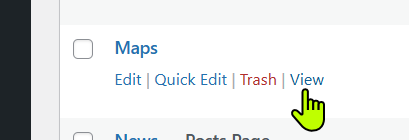
Then go back to the dashboard, click Pages. Right-click the View icon for the map page and select Open link in new tab.
Right-click the map and select Open link in new tab. Inspect the URL for the map image. If it has “-scaled” in the URL, copy the URL, open Notebook on your desktop and paste the URL into it. Then delete “-scaled”.
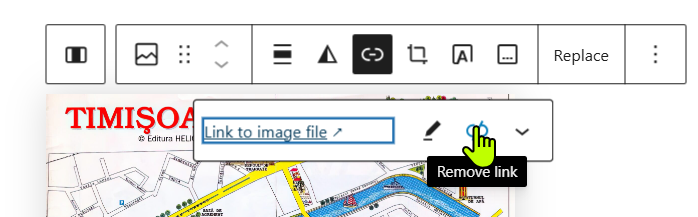
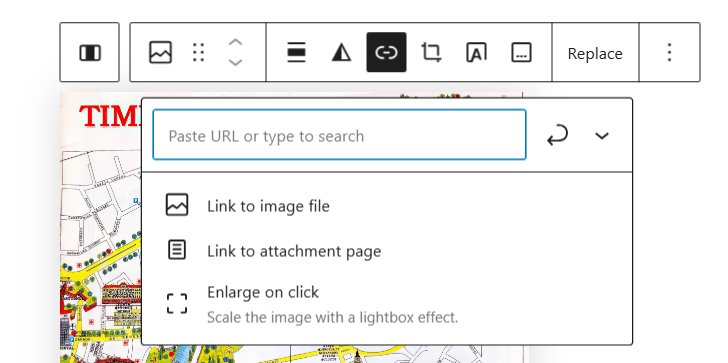
Copy the revised URL. Go back to the new map page click on the map. In the small toolbar click the link icon (see the illustration below in the Links section). Delete the link by clicking the crossed-out link icon.
Enter the revised URL where it says Paste URL or type to search. Save the page (upper right).
When the map is then clicked on the map page the full size map image will be displayed.
Navigation
Links
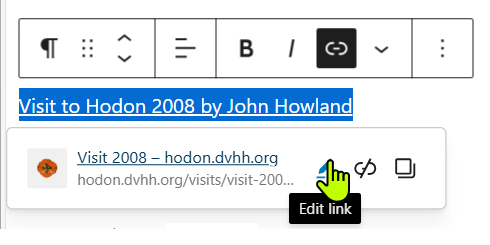
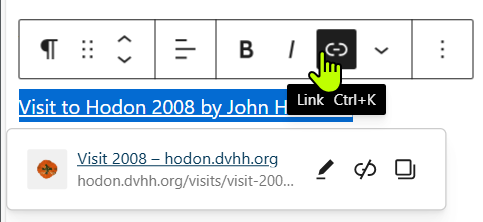
For each link that is not part of a menu edit the link on your new page by selecting the link text and clicking the link icon in the popup toolbar. Then click the edit icon (the little pencil).
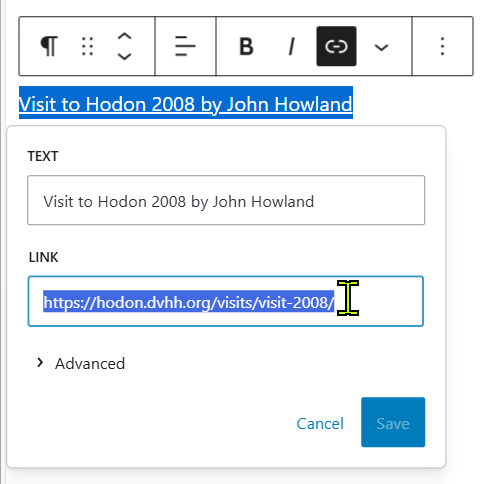
In the new popup window enter the new link URL. It is easiest to open the destination page in a new tab. Then copy the URL in the address bar.
If you have not yet set up the new page for that link, come back later to update the link.
Menus
For your new village website there are several types of menus available.
You do not have access to the menu setup tool.
Once you have set up all the pages and defined the page structure with the Parent settings for each page you are ready to work with your team leader to set up the menus.
Main menu
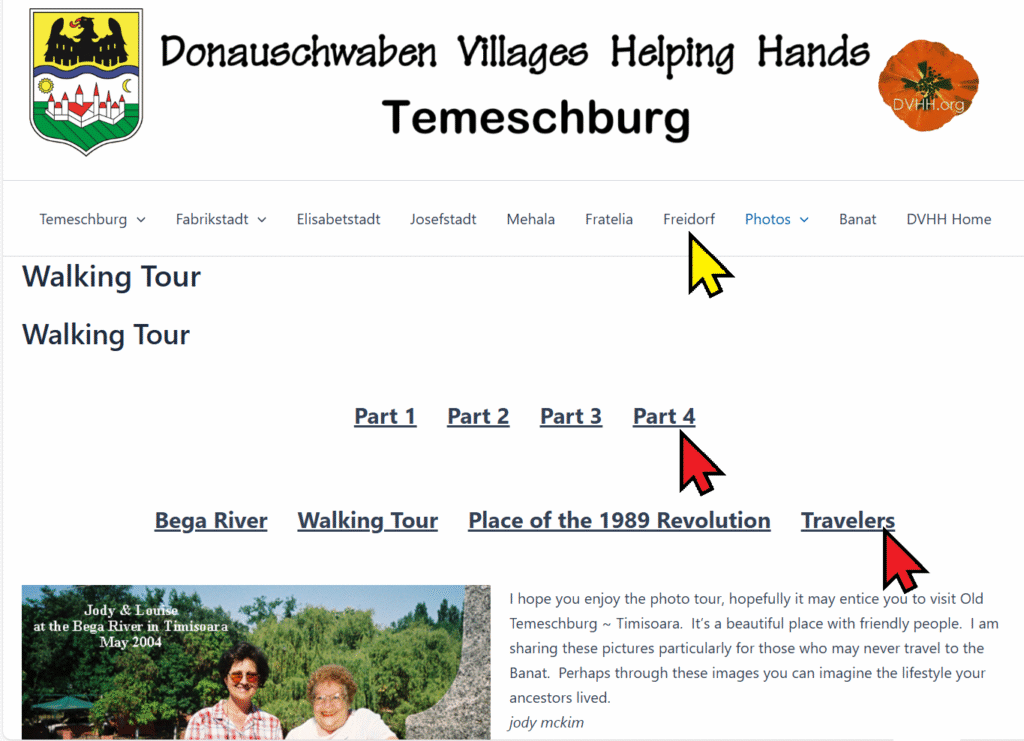
The primary menu is the regular, main menu, under the header. See illustration – the yellow arrow points to the primary menu.
Note the down-arrowheads on some of the items in the menu. When the cursor is moved to one of those items a new drop-down menu opens.
There may be several levels of that feature.
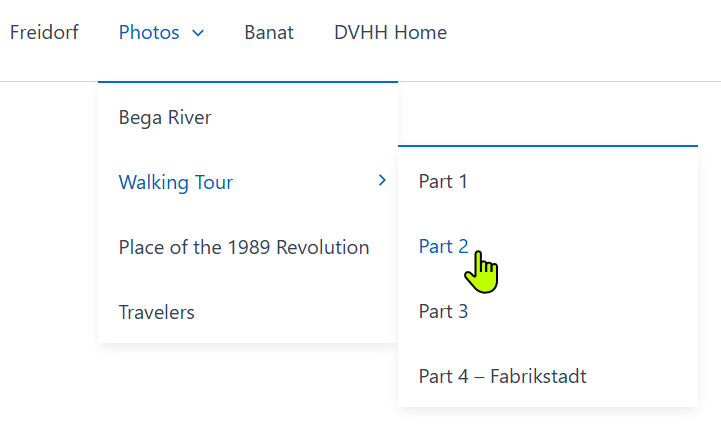
To get the main menu set up, send an email to your team leader (or the Administrator for the website) and request that the menu be set up. List the pages that should appear in the menu in your email. Tell if you want dropdown menus to other pages.
Secondary menus
Additional menus may be shown on pages. They can be located anywhere on a page (they take up a separate line and have some space above and below). See the illustration shown secondary menus pointed out by red arrows in the image above.
See how those menu features work on the Temeschburg site.
Many village pages have secondary menus. There may be several. See the menus on the Temeschburg website Walking Tour page as an example. The red arrows in the illustration above point to secondary menus.
To set up secondary menus request that task from your team leader. List the page the secondary menu should be on and the items (pages) to be included in the menu.
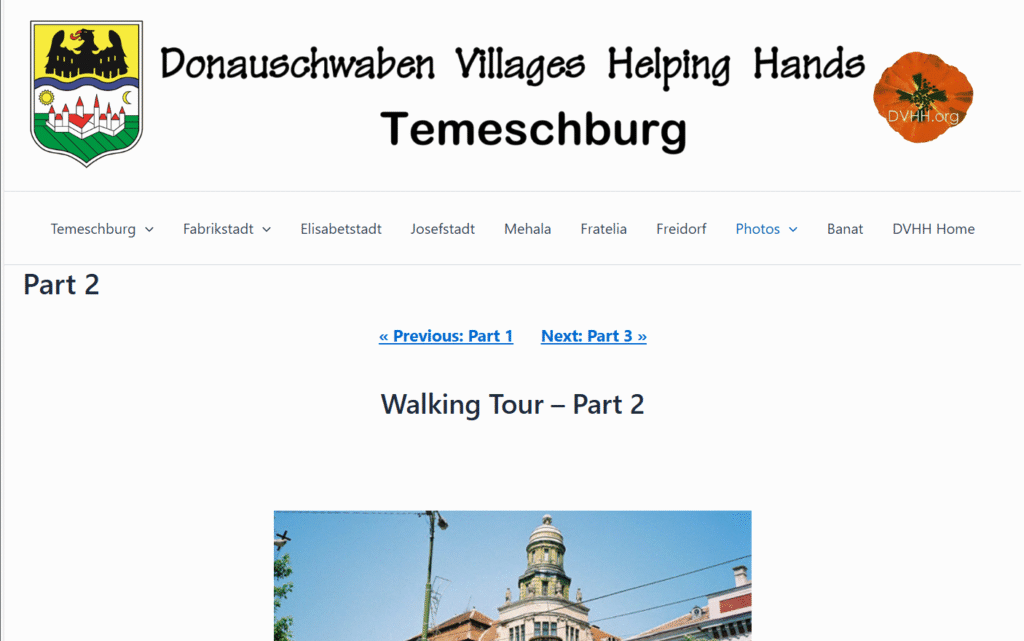
Previous-Next links
In addition to menus your team leader can also set Previous-Next links for a set of pages.
That set of pages must all have the same parent page. The illustration here shows such links on the Temeschburg Walking Tour photos pages.
Right-click the link and select open in a new tab. Then see how those links work.