
As on other pages on the old DVHH.org website, the Banat BIOS page is organized in table formats. That was the best approach when the website was created some two decades ago. That formatting does not work well on our new WordPress based site.
NOTES:
One page (FRANK, Josef) has tabular information. To bring that information to the new site select the table and paste it into a Word document. Then select the table and paste it into the new page.
One bio (MUTTER, Ferdinand) has poetry set in a colorful surround. Don’t copy the images on that page.
Some pages have information side by side. For those set up two columns on the new page. Select the text separately in each box and paste it into the appropriate column on the new page.
Some section have just the name of the individual with no information – just create an essentially blank page – we will find out more about the individual later.
If you run into any difficulties, please inform a team leader via the Request Help page.
Instructions
Please follow these instructions carefully and in order.
Sign in to Dashboard ‹ DVHH Banat — WordPress – If you do not have credentials please use the Request Help page.
In a separate tab go to the old website – Banat Biographies
Scroll down to the bio for the name you wish to transfer.
Right -click on each image in turn and select Save Image As – download it to your downloads page.
In the dashboard click Media Library. On your computer open your File Explorer. Select the images you downloaded and drag them to the Media Library page. They will upload and appear at the top of the Media page.
In the dashboard click Page and click New page.
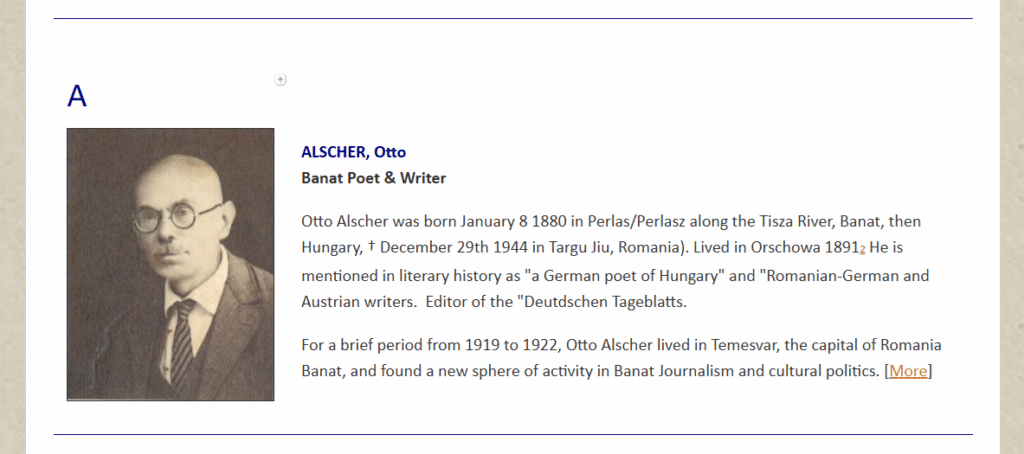
On the old site select the name. Paste it as the page title.
Select the text in each block on the old site and paste it into the new page.
At the appropriate location on the new page do a line return and then click the plus-sign (in the black box on the right end). Select Image and insert the image from the Media Library.
If there is a “More” link, usually at the end if the information for the individual, click the link and also copy everything from that page (including the images – download them as described above). Don’t worry about reformatting the information on the page, we will do that at a later time.
When you are done with the page click Publish (you need to do that twice). Go ahead and publish the page.