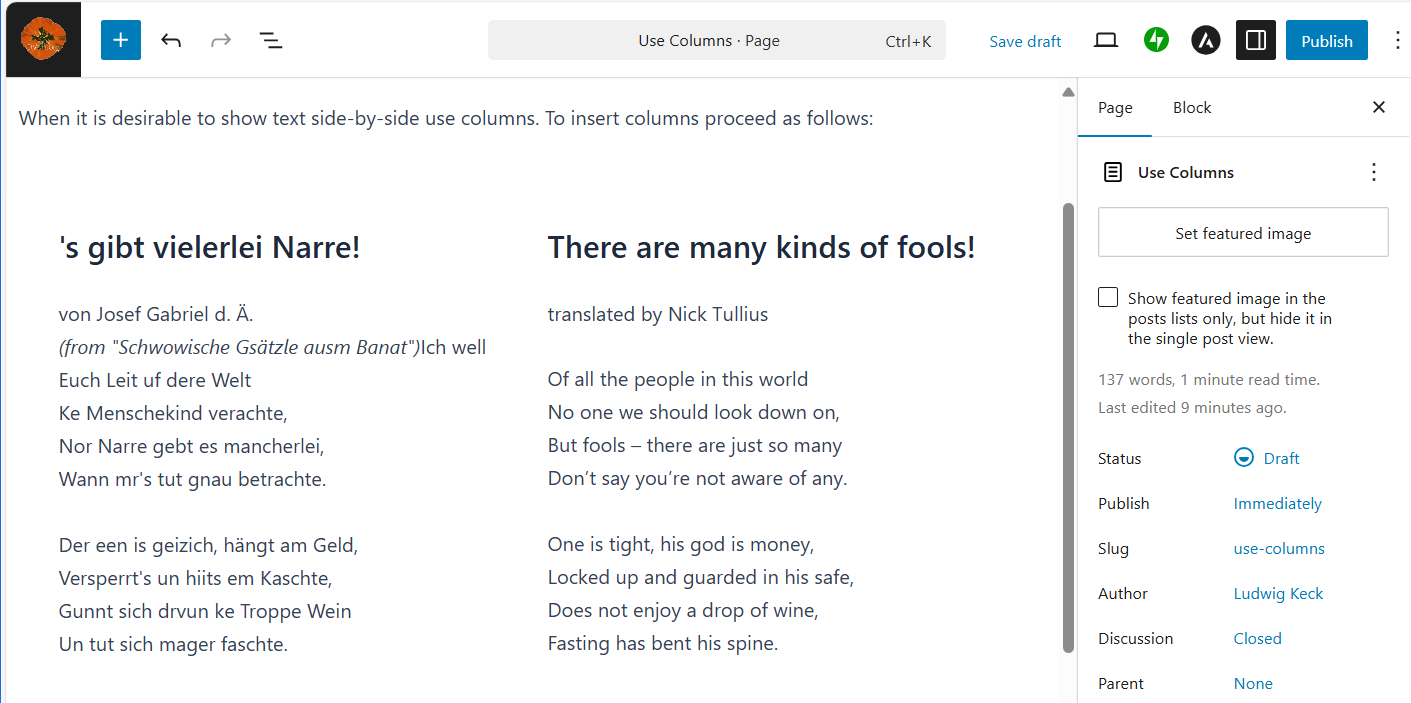
When it is desirable to show text side-by-side use columns. To insert columns proceed as follows:
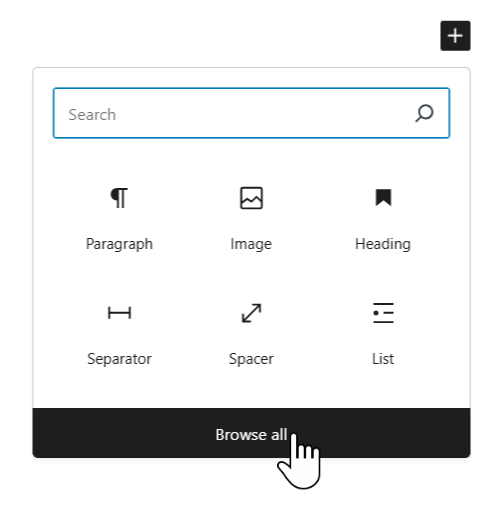
► On a new line click the Add block icon (plus-sign on black square).
► Click Browse all.
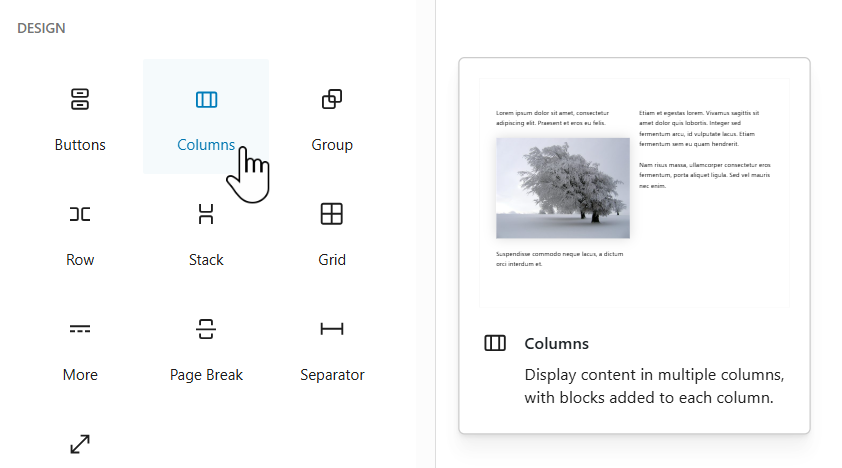
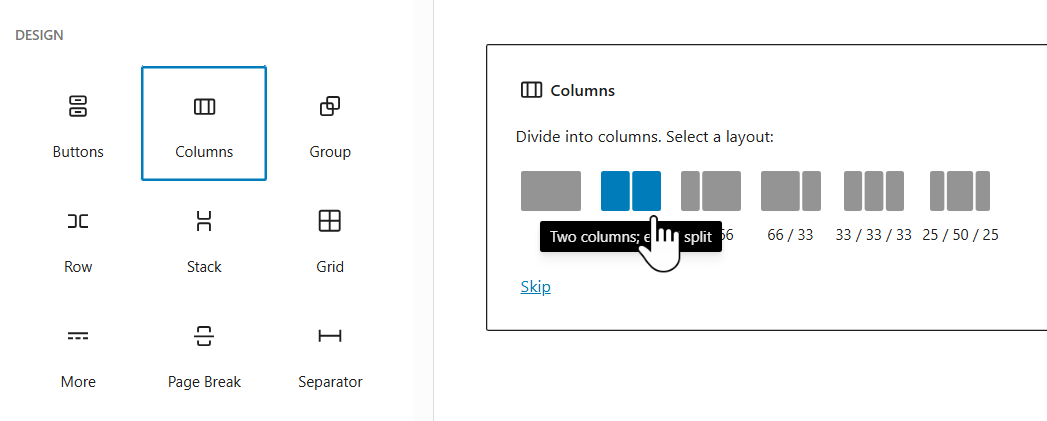
► In sidebar scroll down to DESIGN and click the Columns icon.
► Select the layout – number of columns and how they are split (percentage).
► Select the text in the source. Copy it – Ctrl-C.

► Paste the copied text into the appropriate column on the new page.
► Move your cursor over the columns. The individual column block will show an outline. Click the + icon. Click the paragraph icon. Then paste the text, Ctrl-V.


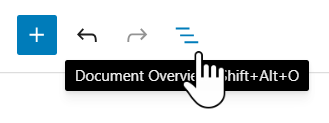
If you have trouble finding the correct column to insert text use Document Overview (upper left – three staggered horizontal lines).